



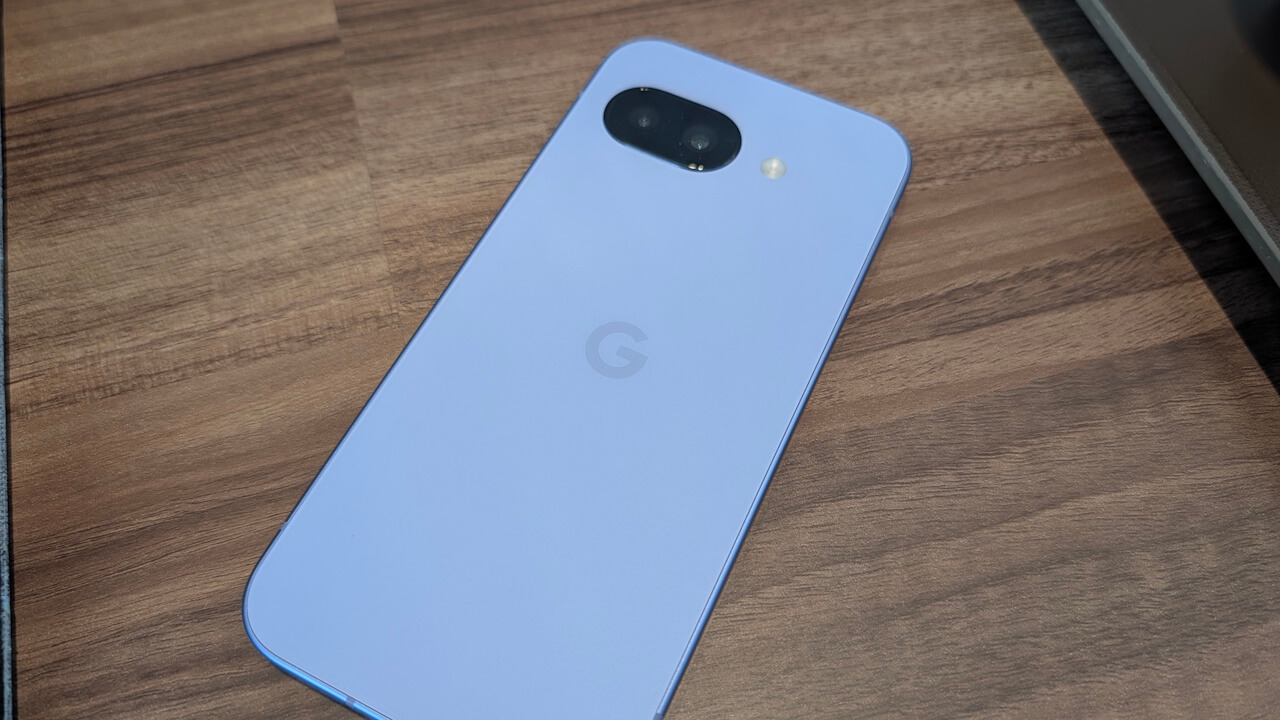

- “Ask Pixel,” a troubleshooting tool for Google Pixel devices, has been confirmed to be rolling out to the “Pixel 9a.”
- Once “Ask Pixel” is enabled, a new search bar appears in “Device diagnostics and support” within Android Settings; tapping it launches the tool.
- It has been determined that the rollout requires the latest updates for the “Settings Services” and “Pixel Troubleshooting” apps, as well as the latest “Google Pixel system update.”
We previously reported that “Ask Pixel,” a troubleshooting tool for Google Pixel devices integrated with Google’s AI “Gemini,” had begun rolling out to select Google Pixel devices.
While we initially only observed this rollout on devices such as the “Pixel 10,” “Pixel 10 Pro XL,” and “Pixel 10 Pro Fold,” we have now confirmed its availability on the “Pixel 9a” and would like to provide an update.
Once “Ask Pixel” is enabled, a new search bar appears under “Device diagnostics and support” in the Android Settings menu. Tapping this search bar launches “Ask Pixel,” allowing you to begin troubleshooting through a natural conversation.
Additionally, a new diagnostic tool that serves as a foundation for “Ask Pixel,” known as “Charging Diagnostics,” has also been rolled out for Google Pixel devices.


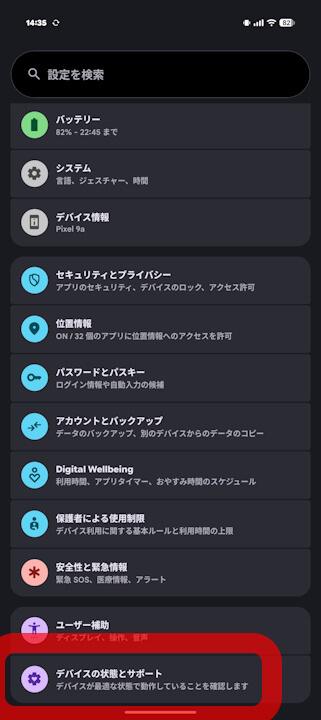
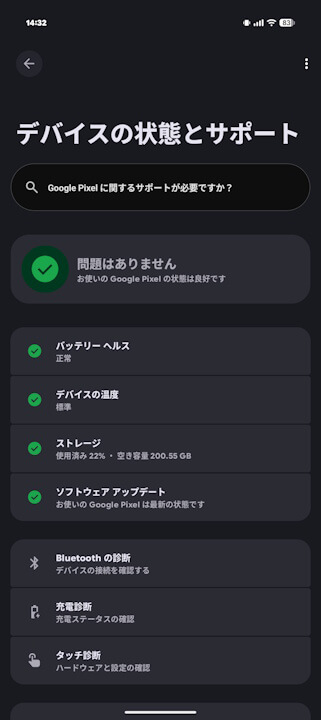
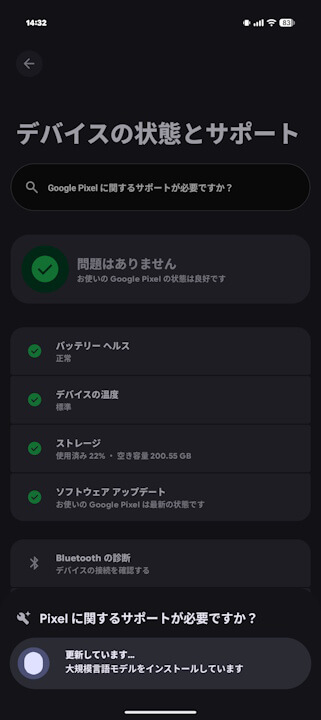
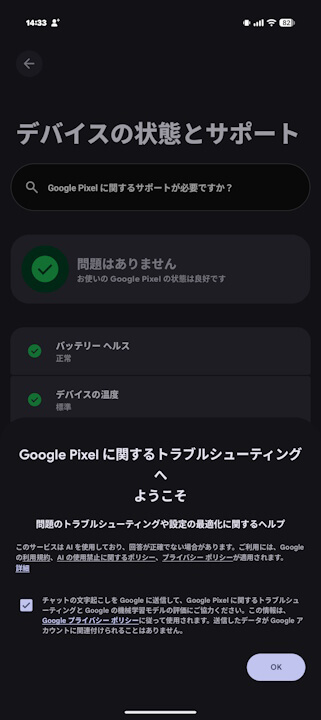
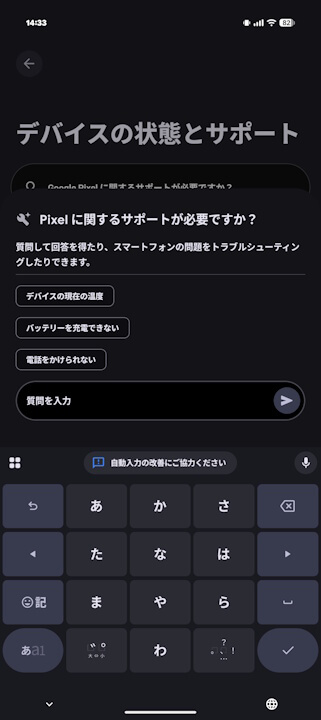
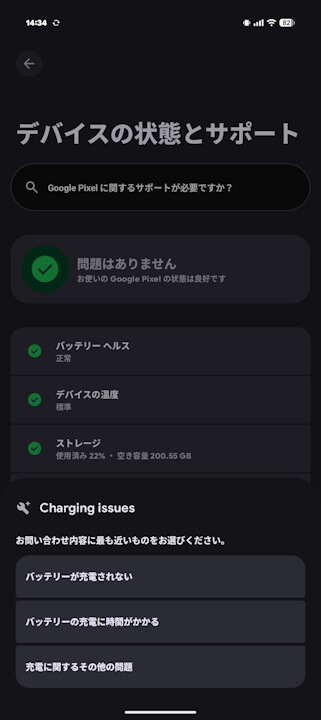
Regarding the requirements for “Ask Pixel” to appear, it is essential to have the latest updates applied to both the “Settings Services” app (which governs Android settings) and the “Pixel Troubleshooting” app (which manages Google Pixel device support). Furthermore, having the latest “Google Pixel system update” installed is a prerequisite. As of now, the latest “Google Pixel system update” is the one released around Wednesday, July 1, 2026.
While the full list of supported Google Pixel devices for “Ask Pixel” has not yet been confirmed, it is almost certain that it will be available on the “Pixel 9” series and newer models.

How to check for “Google Play system updates”
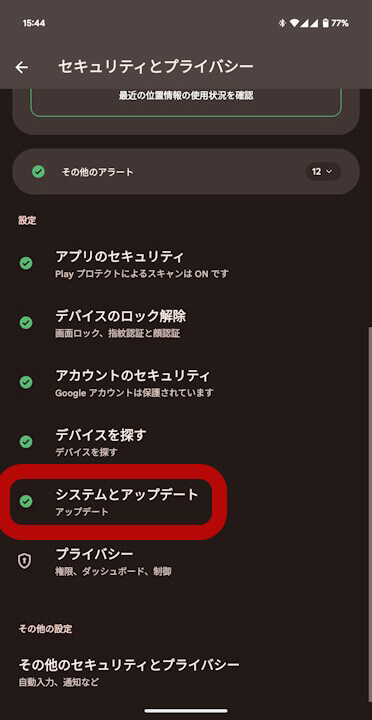
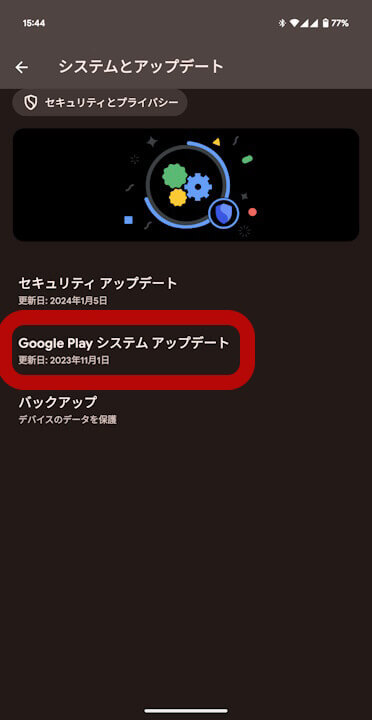
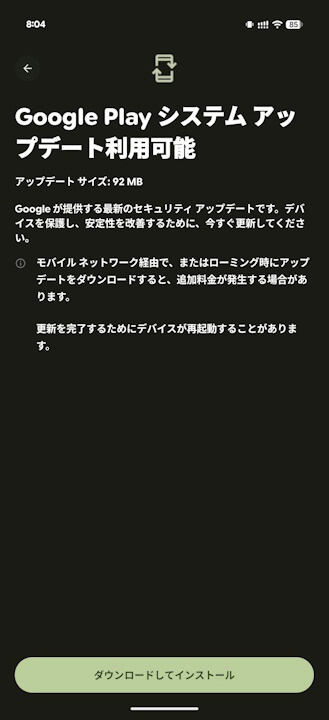
You can check for “Google Play system updates” on your Android device by going to Settings > Security & privacy > System & updates, and then tapping on “Google Play system update.”
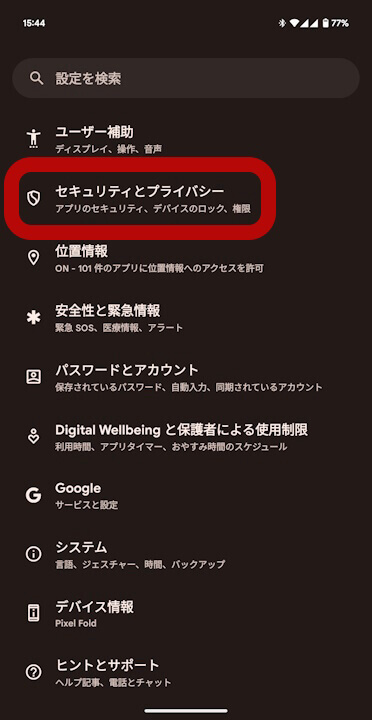
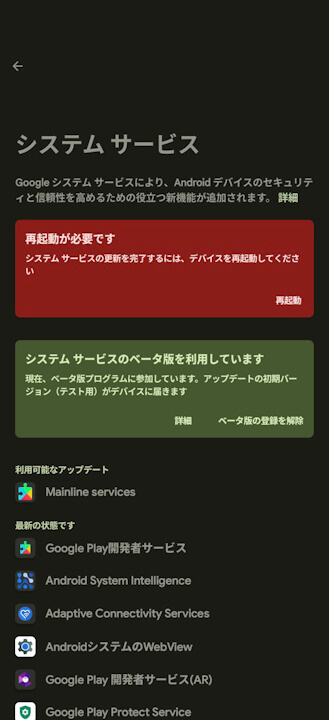
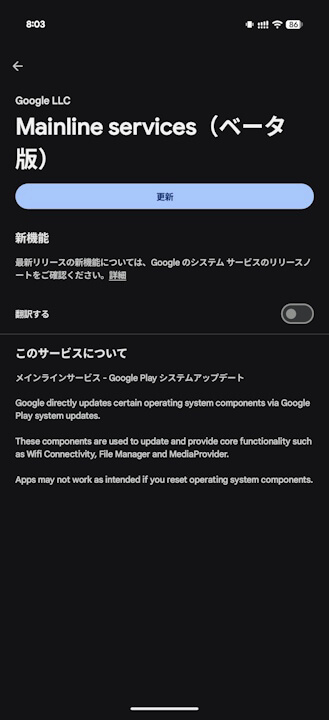
Additionally, you can check for the availability of “Google Play system updates” through the updates for the “Mainline services” app, which is listed under the “System services” list—a collection of system apps essential for the smooth operation of the Android platform.
App Links
“Settings Services”

“Pixel Troubleshooting”
“Mainline services”