



- A new “Magic Cue” settings shortcut has been added to the “Google Messages” app on the “Pixel 10” series.
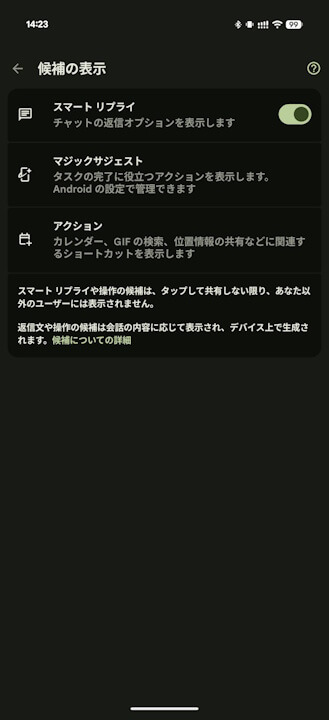
- The new “Magic Cue” shortcut is located within the “Suggestions” settings.
- This was added in the “Google Messages” for Android app update (messages.android_20251212_00_RC00.phone.openbeta_dynamic) released on Monday, December 15, 2025.
A new “Magic Cue” settings shortcut has been added to the Google Messages app on the new-generation Google Pixel device, the “Pixel 10” series.
The new “Magic Cue” settings shortcut in the Google Messages app on the “Pixel 10” series is essentially a link to the “Magic Cue” settings already implemented on the “Pixel 10” series. This allows you to access the “Magic Cue” settings directly from the Google Messages app.
Specifically, the “Magic Cue” shortcut has been newly added within the “Suggestions” settings of the Google Messages app. This feature was introduced in the Google Messages for Android app update (messages.android_20251212_00_RC00.phone.openbeta_dynamic) released on Monday, December 15, 2025.
<string name="ds_card_body_text">Turn on Magic Cue to share info, manage event details, and more right from your chat</string>
<string name="ds_card_primary_button_text">Settings</string>
<string name="ds_card_secondary_button_text">Not now</string>
<string name="ds_card_title">Get helpful info and actions</string>
<string name="ds_preference_text">Show helpful actions to help complete tasks. Manage in Android Settings</string>
<string name="ds_preference_title">Magic Cue</string>
<string name="ds_setting_key">ds_setting</string>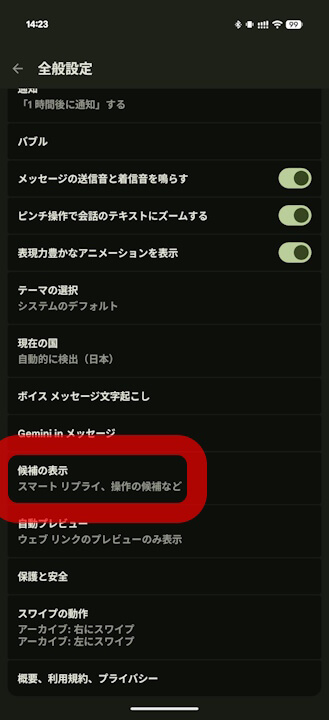
The “Magic Cue” feature, originally implemented on the “Pixel 10” series, is an AI function that utilizes the on-device AI model “Gemini Nano.” It proactively presents necessary information based on the content of communications within apps like Google Messages and the Google Phone app.
For example, it can read a message like “I want to see a picture of a cat” and suggest cat photos, or find and display flight information when you’re calling an airline.
“Google Messages” App Link

コメントを残す