




- The iOS version of the Google app features a gesture-based shortcut to switch to “Incognito Mode” directly from the home screen.
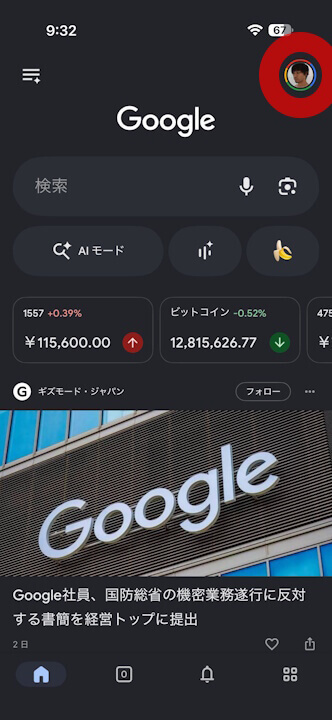
- Usage is simple: just long-press the Google user icon in the top right corner of the app’s home screen.
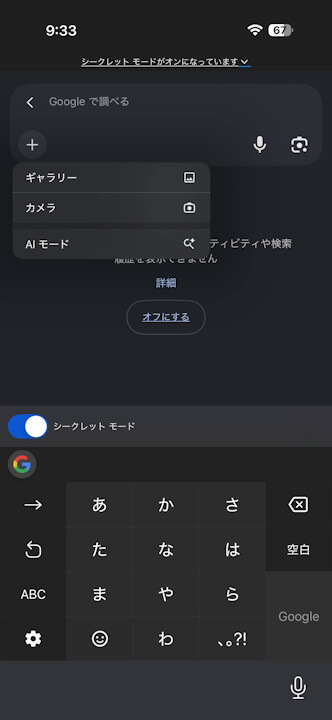
- The “+” menu includes options for “Gallery” and “Camera” for image searches, as well as an “AI Mode” option designed for Incognito usage.
With the arrival of the Google AI “Gemini” app and AI-powered search features, the demand for Incognito Mode in Google Search and Incognito windows (or tabs) in the Chrome browser is arguably higher than ever.
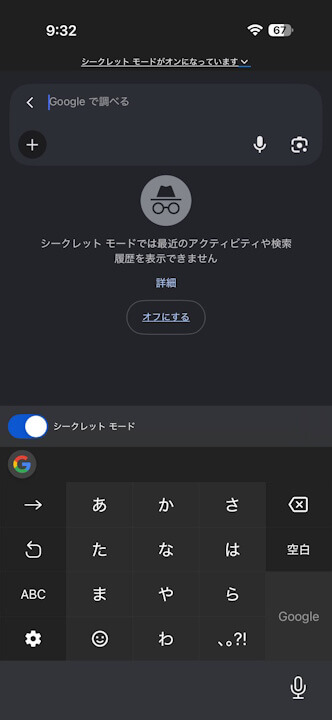
Incognito Mode and Incognito windows are truly private modes where your web browsing history, search history, cookies, and entered data are not saved. As it turns out, the iOS version of the Google app includes a convenient gesture-based feature that allows you to switch to Incognito Mode directly from the home screen.
It is very easy to use: simply long-press your Google user icon in the top right corner of the iOS Google app’s home screen to toggle Incognito Mode on.
Additionally, the “+” menu provides “Gallery” and “Camera” options for image searches, along with an “AI Mode” option that is specifically tailored for Incognito sessions.

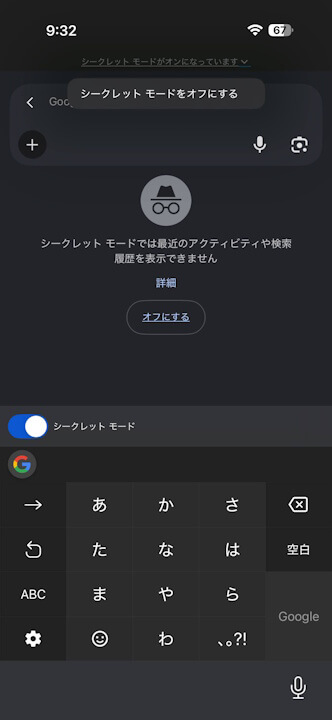
To turn off Incognito Mode, tap the “Incognito Mode is on” indicator at the top of the screen and then select “Turn off Incognito Mode” when it appears.
The gesture-based switching for Incognito Mode in the iOS Google app makes private browsing much more intuitive and convenient. We highly recommend giving it a try.
Please note that this gesture-based Incognito Mode switching feature does not appear to be available in the Android version of the Google app.
Google App Link