



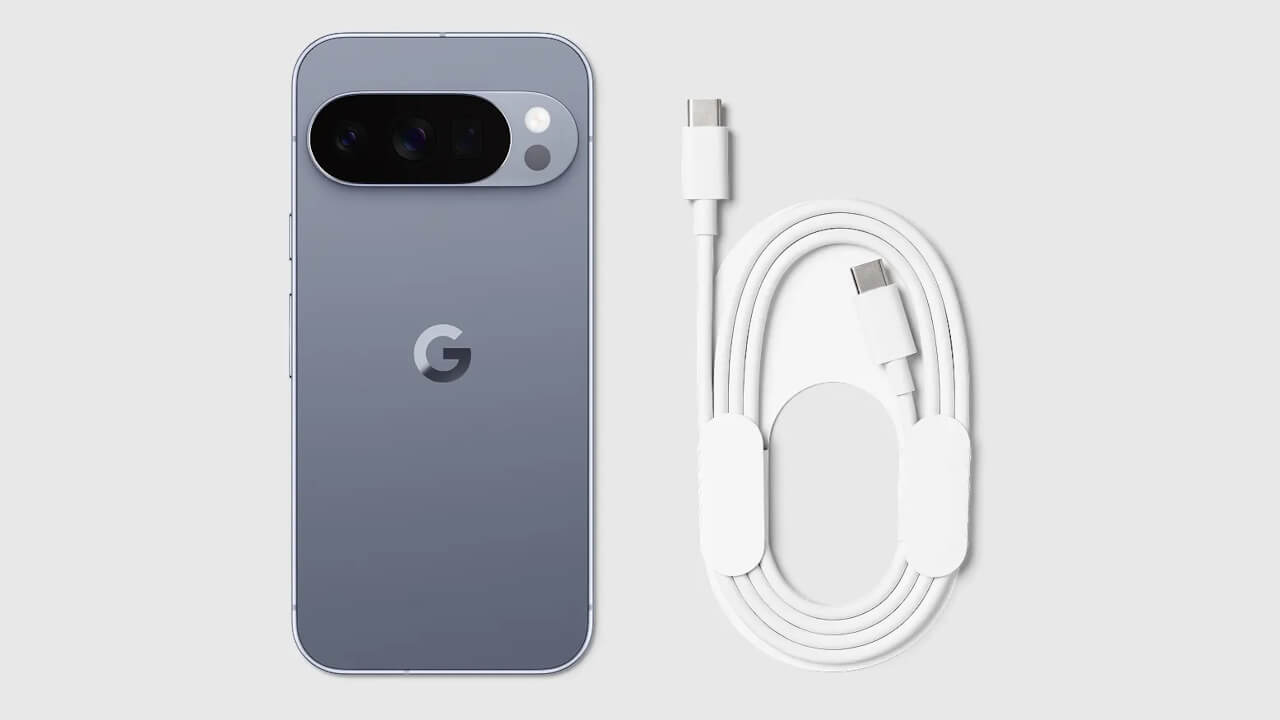
- The Google Store has published an article titled “4 things your Google Pixel USB-C port can do besides charging,” highlighting features of the USB Type-C port on Pixel devices.
- USB Type-C was first introduced in Google devices with the Nexus 5X and Nexus 6P released in September 2015.
- The four features include: data backup via USB flash drives (external storage), connecting wired earphones/headphones, mirroring using “DisplayPort Alternate Mode (DP Alt Mode),” and using the phone as a PC webcam via “Android Webcam.”
On Wednesday, January 14, 2026, the Google Store published a new article on its official EC site titled “4 things your Google Pixel USB-C port can do besides charging,” introducing various ways to utilize the USB Type-C port on Google Pixel devices.
Google Pixel devices have featured a USB Type-C port since the original Pixel and Pixel XL. In fact, USB Type-C was first adopted by Google a decade ago with the release of the Nexus 5X and Nexus 6P in September 2015.
Beyond just charging, the USB Type-C port on Google Pixel devices can be used for backing up data to USB flash drives or other external storage, connecting wired earphones or headphones, mirroring screens via “DisplayPort Alternate Mode (DP Alt Mode),” and even functioning as a high-quality PC webcam through “Android Webcam.”
Data Backup via USB Flash Drives
By connecting a USB flash drive or other external storage device to your Google Pixel, you can move and back up photos, videos, and other files.
When you connect external storage to a Google Pixel device, a notification saying “USB accessory connected” will appear. Tap this notification and navigate to Settings → Connected devices → USB, then select “File Transfer / Android Auto.” From there, simply open the “Files by Google” app and copy the desired files to the external storage to complete the process.
It is recommended to use USB storage devices that support USB 3.0 or higher for faster data transfer speeds.
Connecting Wired Earphones / Headphones
Connecting wired earphones or headphones to your Google Pixel allows you to enjoy high-quality audio playback. Unlike Bluetooth earphones, you don’t have to worry about battery life when using a wired connection.
However, since most wired headphones use a 3.5mm audio plug and Google Pixel devices do not have a 3.5mm audio port, you will need a “USB-C to 3.5mm Headphone Adapter” to convert the connection.
While the official “USB-C to 3.5mm Adapter” previously sold on the Google Store seems to have been discontinued, there are plenty of third-party alternatives available to serve the same purpose.
Mirroring via “DisplayPort Alternate Mode (DP Alt Mode)”
Starting with the Pixel 8 series, Google Pixel devices now support “DisplayPort Alternate Mode (DP Alt Mode),” enabling the highly anticipated wired video output (mirroring).
This allows for mirroring to external displays equipped with HDMI ports using a USB-C to HDMI cable, or to DP Alt Mode-compatible displays using a standard USB Type-C cable. With the increasing popularity of DP Alt Mode-compatible AR glasses, you can now mirror your Google Pixel’s screen onto a large virtual display even while on the go.
PC Webcam via “Android Webcam”
Since the December 2023 “Feature Drop,” Google Pixel 6 and newer devices can be used as a PC webcam (Android Webcam) by connecting them to a computer via a USB cable.
The Google Pixel’s webcam functionality includes a high-quality “HQ” mode, camera magnification settings (0.5x ultra-wide, 1.0x, and 2.0x), the ability to use front and rear cameras simultaneously, and switching between landscape and portrait orientations.
Source: Google Store
コメントを残す