


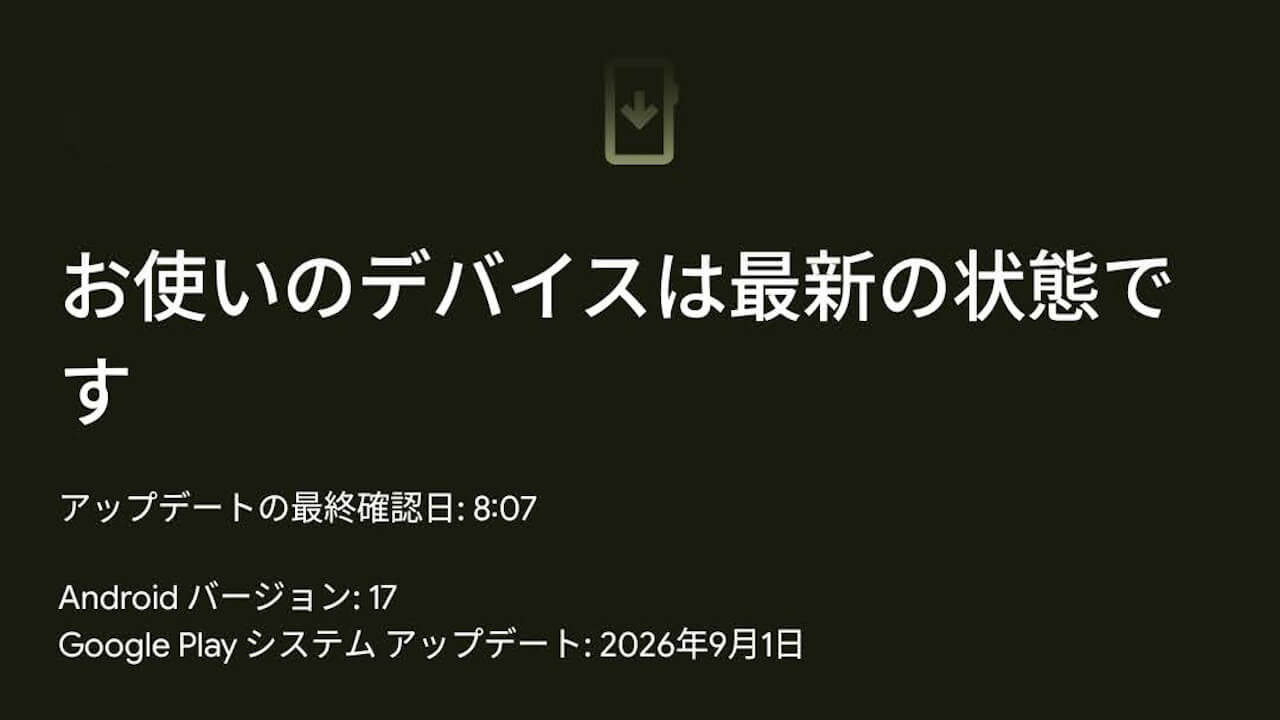

- I was able to resolve the “Update Failed” issue with “Google Play System Update” using my own method.
- This is strictly my own method—it is not the official Google solution.
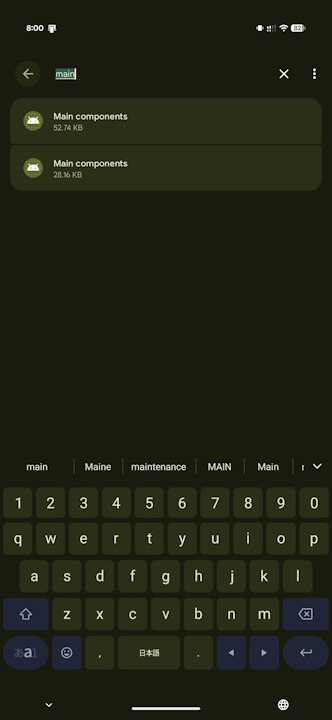
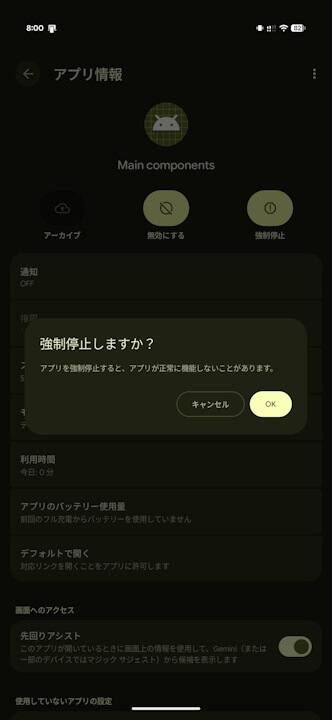
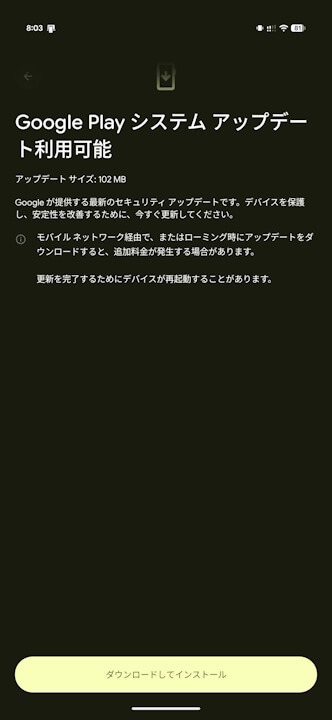
- I “Force Stopped” the “Mainline services (Main components)” section of the “System Services” app, which manages “Google Play System Update,” then restarted my Android device. After the device restarted, I reapplied the “Google Play System Update.”
Since around mid-September 2026, an issue has been occurring with the “Google Play System Update“—part of the “Google System Updates” that Google releases monthly to enhance security and reliability—on some Android devices.
This issue simply prevents the Google Play System Update from completing. While the update file downloads successfully, it gets stuck during installation, displaying an “Update failed” message. As we enter late September 2026, this “Update failed” issue with the Google Play System Update remains unresolved.
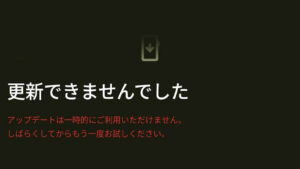

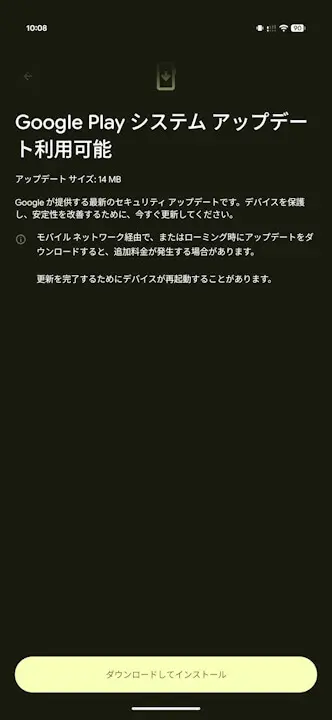
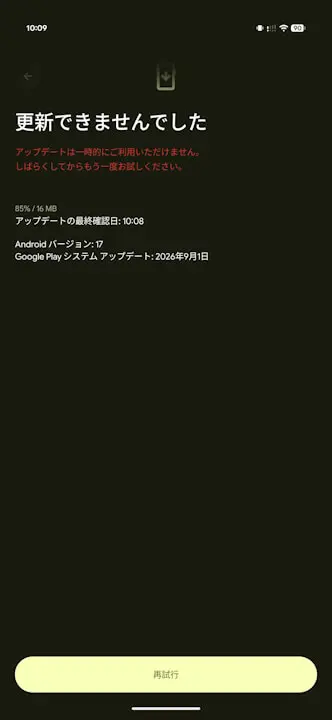
In the meantime, I managed to resolve this issue using my own workaround, so I would like to introduce it here. That being said, this is purely a personal method and is unofficial by Google. Please decide for yourself whether or not to use it as a reference.
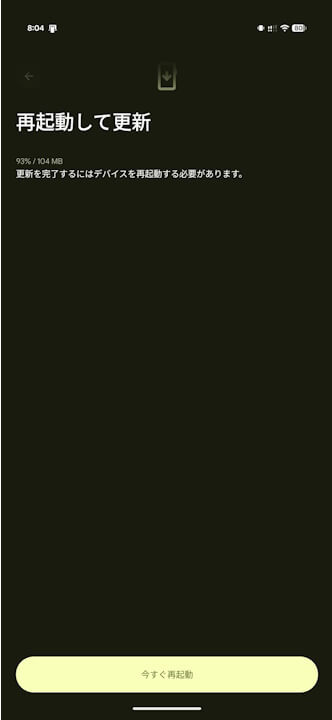
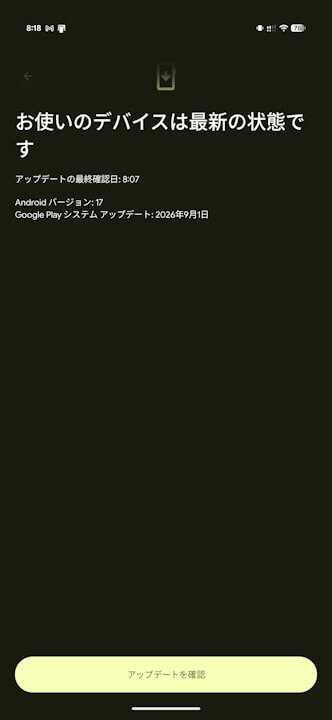
Resolving the Google Play System Update “Update failed” issue involves a very simple 3-step process. “Force stop” the system service app “Mainline services (Main components)” which controls the Google Play System Update, reboot your Android device, and then apply the Google Play System Update again after the reboot. Once you do this, the “Update failed” message will no longer appear on the Google Play System Update screen.
Please note, as mentioned earlier, this is an unofficial workaround, and you will need to restart your Android device twice: once after stopping the “Main components” app, and again when applying the Google Play System Update afterward. While the entire process takes less than 5 minutes, we recommend doing it when you have some spare time.
As a side note, you can find the “Main components” app by searching for “main” in Android Settings under “Apps,” but you should see two identical “Main components” apps. Make sure to “Force stop” the one with app version v2026-09-01S+.
By the way, in my testing environment, the Google Play System Update “Update failed” issue occurred on both the “Pixel 11 Pro XL” and “Pixel 11 Pro Fold,” but the “Update failed” message stopped appearing on both devices using this exact same method.
| ■ [Unofficial] Google Play System Update “Update Failed” Issue Workaround |
|
“Mainline services” App Link