




- “Google Play” integration has been rolled out in the “Extensions” settings of the Android “Gemini” app.
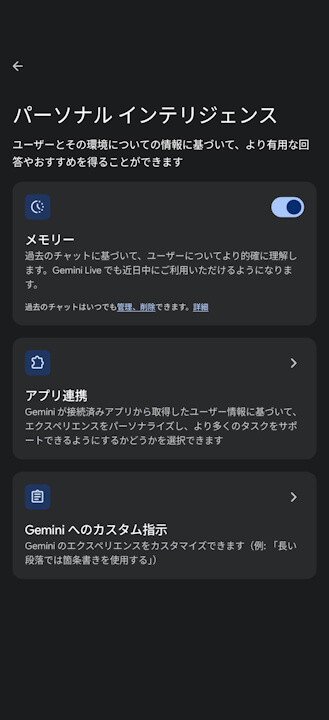
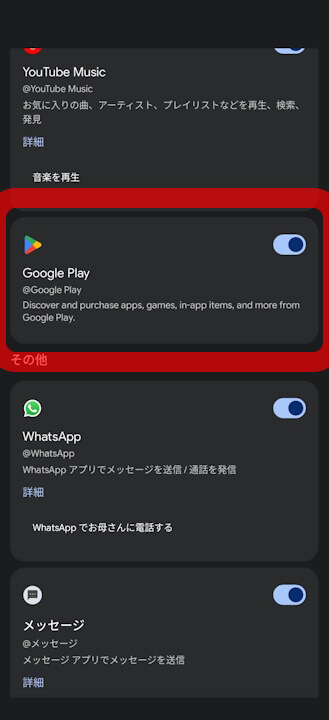
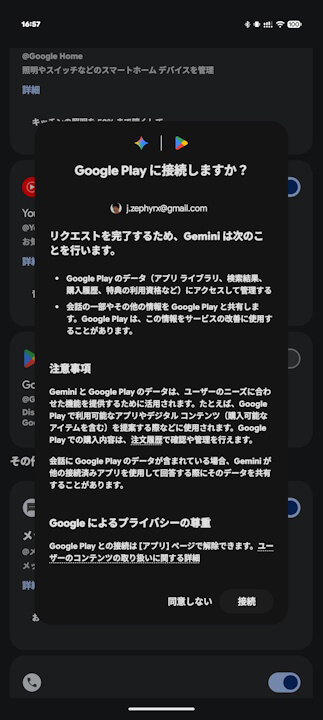
- You can enable the integration by navigating to “Personal Intelligence” > “Extensions” in the Android “Gemini” app settings and toggling “Google Play” to ON.
- Integrating “Google Play” with the Android “Gemini” app allows you to search for new tools and games using natural conversation and install them seamlessly.
On Friday, June 26, 2026 (local time), Google announced the rollout of the “Google Play” integration for the Android version of its AI, “Gemini.”
A few days after the announcement, the “Google Play” option has finally begun appearing in the “Extensions” settings of the Android “Gemini” app. You can start the integration by going to “Personal Intelligence” > “Extensions” in the Android “Gemini” app settings and enabling “Google Play.”
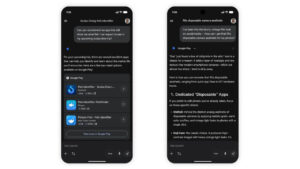

By integrating “Google Play” with the Android “Gemini” app, you can search for new utility or game apps through natural conversation and install them seamlessly. For example, by telling the Android “Gemini” app, “Find me a meditation app,” it will suggest the most suitable apps, allowing you to install them directly without leaving the “Gemini” app. You can also make purchases for in-app items or “Google Play Gift Cards.”
Source: Google (https://support.google.com/gemini/thread/445046856/%F0%9F%93%A3-discover-download-and-play-introducing-google-play-in-gemini)