




- A new “Lock for failed authentication” ON/OFF toggle has been added to the “Theft Protection” settings.
- You can now turn OFF “Lock for failed authentication.”
- If your fingerprint authentication frequently fails and triggers the screen lock, try setting this to OFF.
“Theft Protection” is a data protection feature for Android devices introduced in Android 10 and later to safeguard data in the event of theft.
With “Theft Protection,” the device automatically forces a screen lock to protect your data when theft is detected via motion sensors, Wi-Fi, or smart device connections, or if the Android device goes offline. Additionally, the screen will lock if an unauthorized person attempting to steal the device fails to unlock the screen five or more times.
However, the system cannot distinguish whether these failed attempts are made by the owner or a thief. In other words, the screen will lock regardless of who fails the authentication five or more times.
Recently, a new ON/OFF toggle for “Lock for failed authentication” was added to the “Theft Protection” settings. This allows users to disable the forced screen lock during authentication failures. By default, “Lock for failed authentication” is, of course, set to ON.
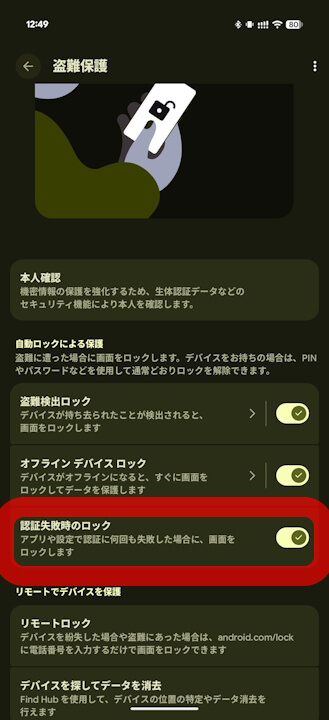
While turning OFF “Lock for failed authentication” is generally not recommended as there are few benefits, you might want to try turning it OFF if you find the screen locking frequently due to repeated fingerprint authentication failures.
コメントを残す