



- Google has officially rolled out “Guided vision,” a new feature for “Gemini Live,” to supported Android devices.
- “Guided vision” is a new “Gemini Live” feature that was teased as part of the September 2026 release of “Android Drop,” which introduces newly launched features for Android devices.
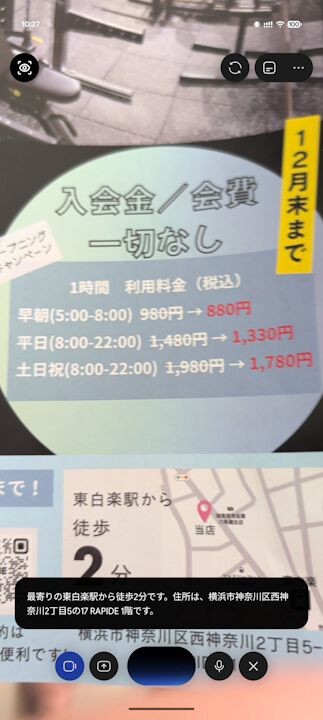
- By sharing your camera in “Gemini Live,” it will provide voice descriptions of what is right in front of you, and you can ask follow-up questions about anything you are curious about.
On Thursday, October 1, 2026 local time, Google officially rolled out “Guided vision,” a new feature for the Google AI “Gemini” intuitive conversational feature “Gemini Live,” to supported Android devices.
“Guided vision” is a new “Gemini Live” feature that was teased as part of the September 2026 release of “Android Drop”, which introduces newly launched features for Android devices. By sharing your camera in “Gemini Live,” it now provides voice descriptions of what is in front of you, and you can also ask follow-up questions about anything that catches your interest.
 jetstream.blog
“Guided vision” was developed in close collaboration with the blind and low-vision community. For its development, Google partnered with Aira, a US-based support service connecting people who are blind or low vision with remote visual interpreters, and trained “Gemini Live” on tens of thousands of hours of visual description data.
Ahead of its official rollout, it was tested in various everyday scenarios by over 1,000 testers, and safety measures were also established by Aira’s experts.
With “Guided vision,” if the camera is pointing too high, too close to the subject, or slightly off to the side, it gives clear voice instructions to adjust the camera orientation, such as “Move slowly to the right,” “Tilt down slightly,” or “Step back.” This ensures users can successfully capture the imagery needed to get responses from “Gemini Live.”
For example, you can have “Gemini Live” read aloud small nutritional labels on food packaging, control panels on home appliances, laundry cycle displays, or menus in dimly lit restaurants. Furthermore, “Guided vision” can be useful in a variety of situations, such as finding a dropped earbud on the floor, locating black pepper inside a cabinet, checking whether a striped shirt and pants match, or understanding the layout of a newly visited room and the placement of items on a table.
“Guided vision” incorporates testing and feedback from blind and low-vision communities in regions including Japan, India, Brazil, Singapore, and Indonesia, ensuring that the descriptions, guidance, and answers feel natural. It is a convenient feature not only for those who are blind or low vision, but also for seniors and anyone who wants to read small text in dark places. In addition, it supports multi-language conversations.
To use “Guided vision,” open “Gemini settings” from your profile in the “Gemini” app, turn on “Guided vision,” and then open “Gemini Live” to share your camera. While “Guided vision” is in use, a dedicated icon will appear in the upper left corner of the “Gemini Live” screen.
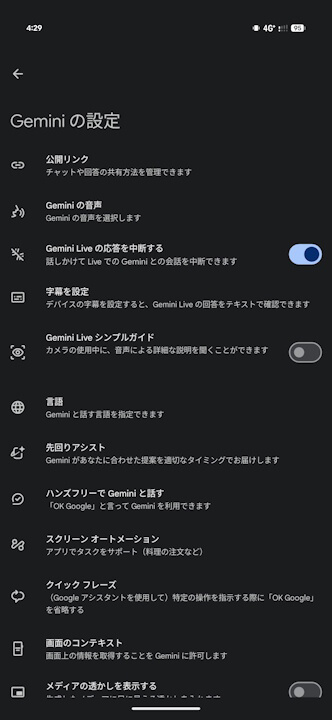
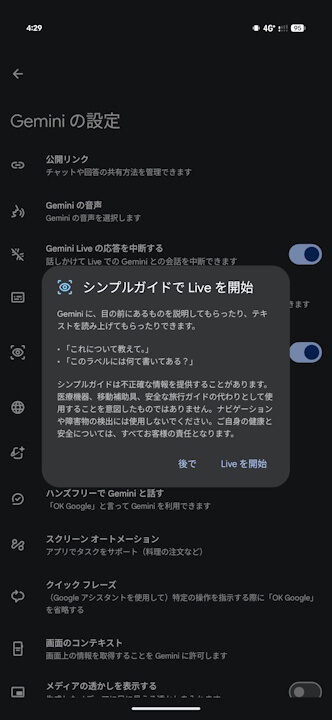
Additionally, if you configure accessibility shortcuts from “Accessibility (TalkBack)” in Android “Settings,” you can set it up to launch “Guided vision” via a floating accessibility button, a two-finger swipe, or by pressing and holding both volume buttons. While using “Accessibility,” you can also select “Guided vision” directly from the “TalkBack” menu that appears when you tap with three fingers.
“Guided vision” is rolling out to Android devices running Android 9 or later in regions and languages where “Gemini Live” is supported.
“Google Gemini” App Link