


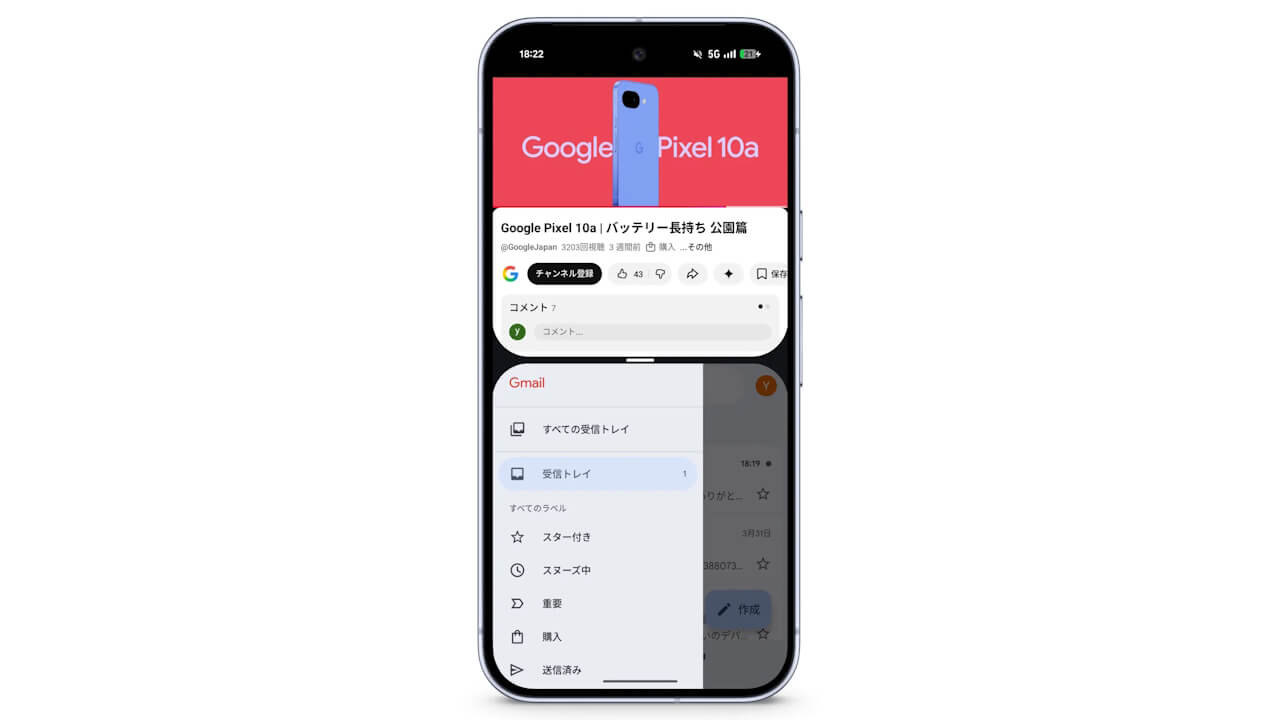

- A Google-official article introducing the “Split Screen” feature for Android devices was published on the Google Store on Saturday, June 6, 2026.
- Using “Split Screen” is simple: while an app is open, swipe up slowly from the bottom of the screen to open the task switcher (recent apps), tap the app icon, and select “Split screen” from the menu.
- The feature can also be used in conjunction with “Bubbles,” a new app floating window feature included in the “Pixel Drop” update released for Google Pixel devices with “Android 17.”
Android devices running Android 10 or later come equipped with a multitasking feature called “Split Screen,” which allows users to display two apps simultaneously on the screen.
This “Split Screen” feature is, of course, still available in the new-generation “Android 17” OS released in June 2026. A Google-official article introducing “Split Screen” on Android devices was published on the Google Store on Saturday, June 6, 2026.
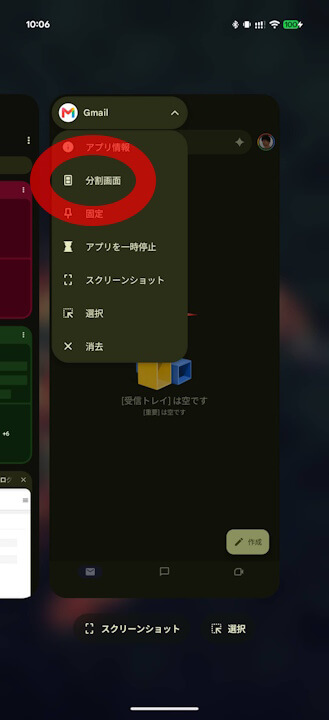
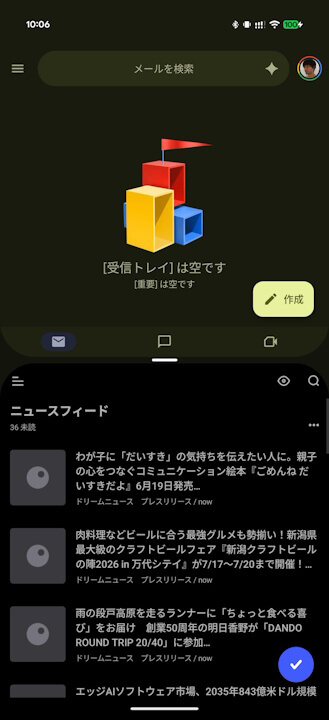
Using “Split Screen” is straightforward: with any app open, swipe up slowly from the bottom of the screen to view the task switcher (recent apps), tap the app icon, and select “Split screen” from the menu that appears. Then, select the second app you want to display in the “Split Screen” view.
The default “Split Screen” ratio is 50:50, but you can adjust the display width by dragging and dropping the divider bar in the center. Double-tapping the divider bar will swap the positions of the two apps.
Additionally, you can save pairs of apps you frequently use together as an “App Pair” shortcut on your home screen. By saving an “App Pair,” you can launch both apps in “Split Screen” mode instantly from your home screen.
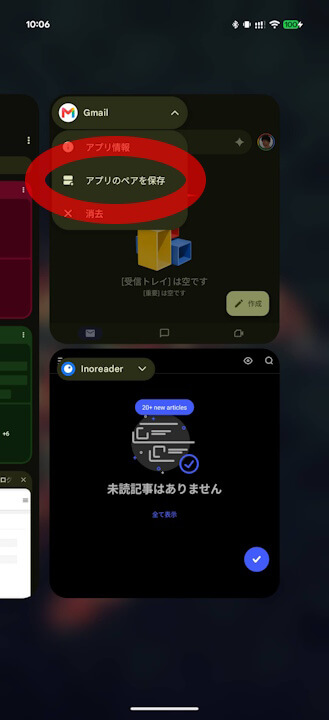
Furthermore, in “Split Screen,” you can also use “Bubbles,” a floating window feature included as part of the new “Pixel Drop” rollout for Google Pixel devices with “Android 17.” This allows you to have the two apps in “Split Screen” while simultaneously displaying up to five other apps using “Bubbles” on the same screen.
“Android 17” truly allows you to take advantage of advanced multitasking.
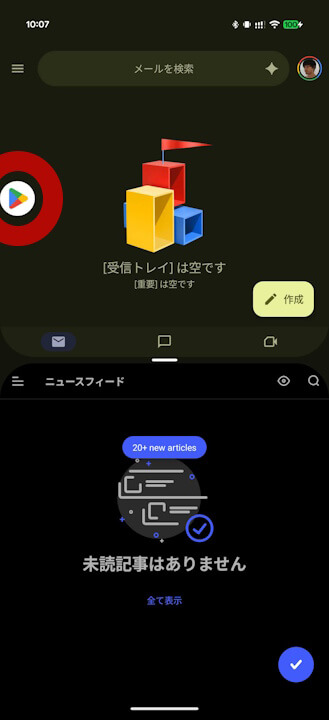
Knowing how to use “Split Screen” and “Bubbles” is quite convenient. Multitasking on a large screen is particularly effective on devices like the “Pixel 10 Pro Fold.”
Source: Google Store (https://store.google.com/jp/magazine/pixel-split-screen)