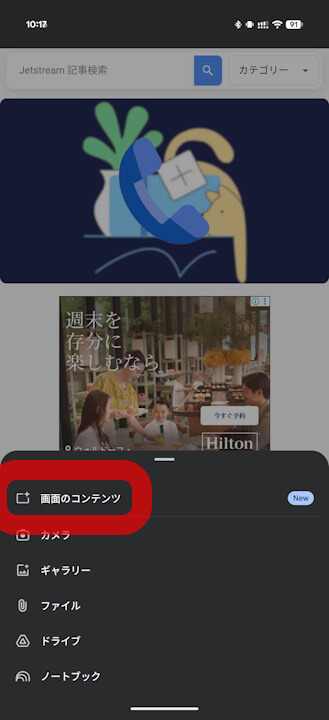


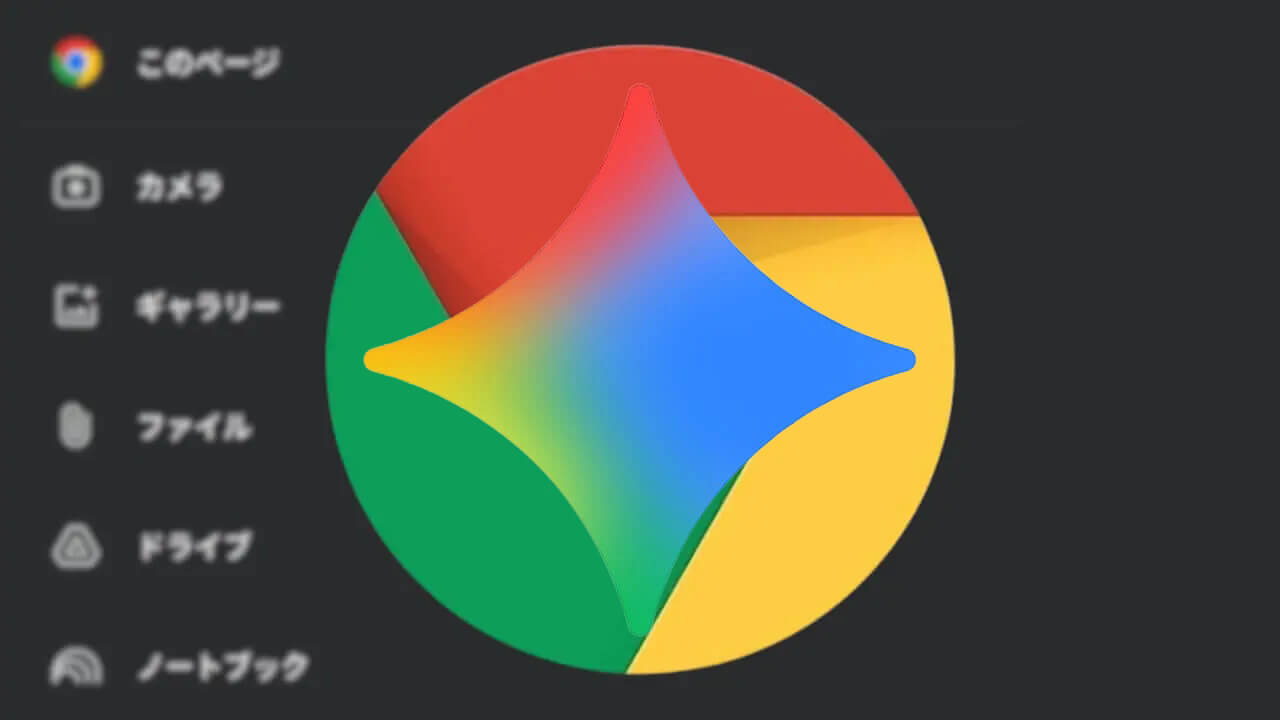

- New features have been added to the Android version of the “Gemini” app as of mid-May 2026: an “Add this page” menu for web content displayed in Chrome, and a “Screen context” menu for content opened in browsers other than Chrome.
- These menus allow users to attach currently displayed content as a file to their prompts.
- The “Add this page” menu appears when viewing web content via the Android Chrome app or “Android System WebView” (which supports Chrome’s display functionality), while the “Screen context” menu appears for other types of content.
As of mid-May 2026, new features have been introduced to the Android version of Google’s “Gemini” app: an “Add this page” menu for specifying web content displayed in Chrome, and a “Screen context” menu for content opened in other browsers.
The newly added “Add this page” and “Screen context” menus in the Android Gemini app allow you to attach the currently displayed content to your prompt as a file. By utilizing these features, you can efficiently obtain responses from the Gemini app, whether you want a summary of the web content you are viewing or need to ask more detailed questions.
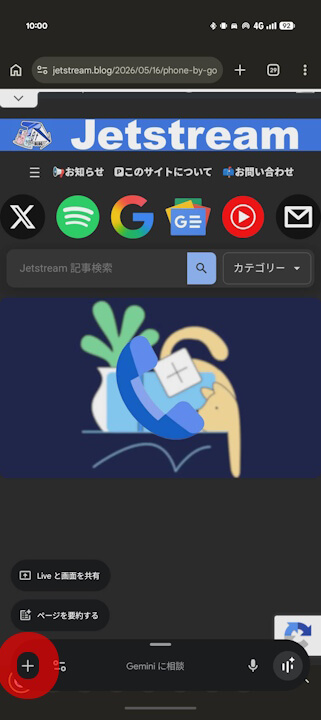
Specifically, while viewing web content, you can launch Gemini (e.g., by long-pressing the power button) and tap the “+” attachment button to reveal the “Add this page” or “Screen context” menu. Tapping the respective menu will attach the web content to your prompt.
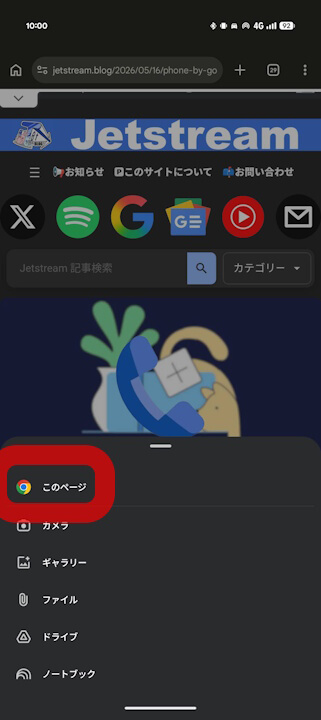
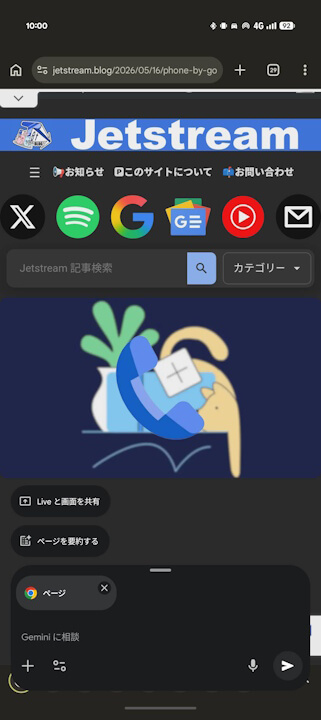
Note that the “Add this page” menu appears when content is displayed via the Android Chrome app or “Android System WebView” (which supports Chrome’s display engine), while the “Screen context” menu appears when viewing other types of content.