




- A new “Bluetooth diagnostics” tool has finally rolled out for Google Pixel devices (Pixel 6 and later).
- As the name suggests, this tool helps diagnose connection issues between your Google Pixel device and paired Bluetooth devices.
- “Bluetooth diagnostics” can be found within the “Connected devices” menu in Android Settings.
A new diagnostic tool, “Bluetooth diagnostics,” has finally begun rolling out to Google Pixel devices, starting with the Pixel 6.
As the name implies, the “Bluetooth diagnostics” tool added to Google Pixel devices is designed to diagnose connection problems with paired Bluetooth devices. Its existence was confirmed in the app file for “Pixel Troubleshooting” v1.0.881271863.release, distributed on March 16, 2026, and it finally began rolling out with the release of “Pixel Troubleshooting” v1.0.885948717.release on March 22, 2026.
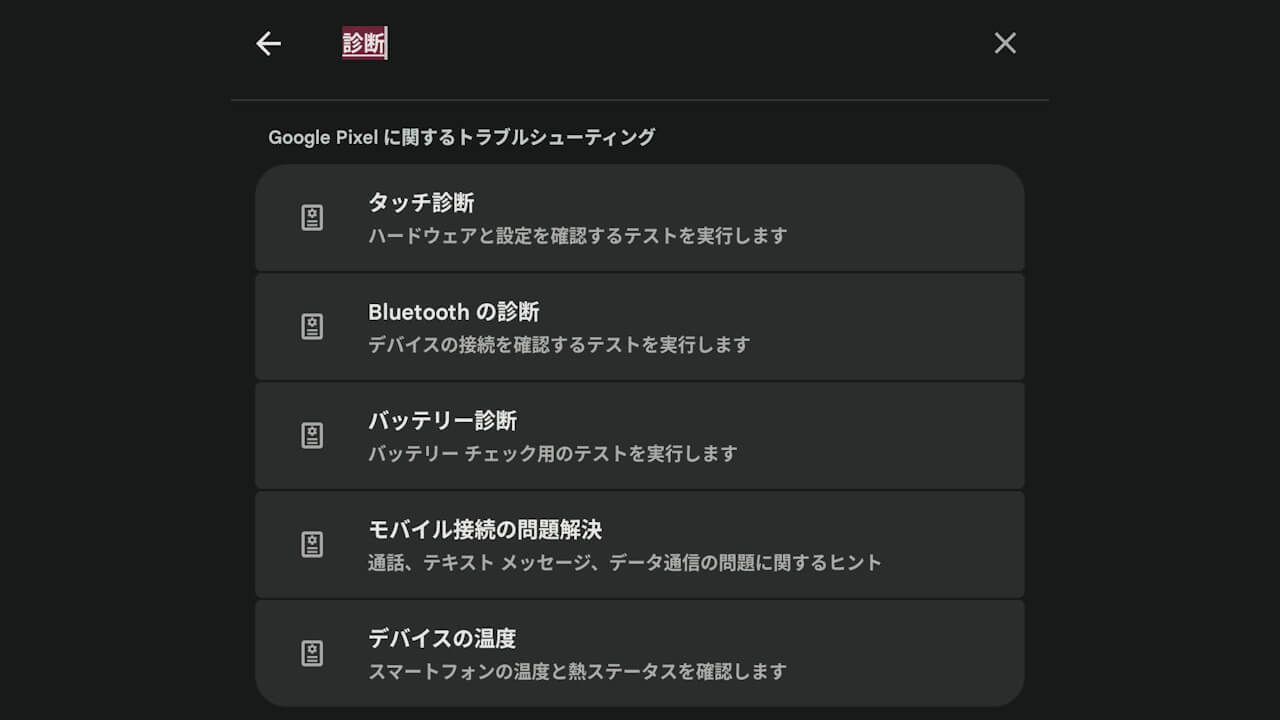
Previously, Google Pixel devices featured four diagnostic tools: “Touch diagnostics” for the display, “Battery diagnostics” for checking battery health, “Device temperature” for checking overheating, and “Mobile network troubleshooting” for calls and connectivity. With the addition of “Bluetooth diagnostics,” the lineup now totals five tools.


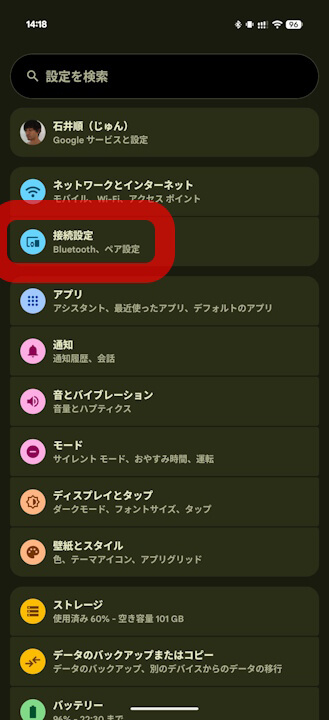
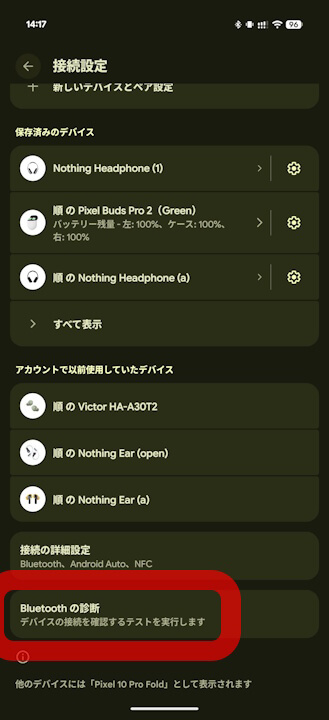
The new “Bluetooth diagnostics” tool for Google Pixel devices is stored within the “Connected devices” menu in Android Settings.
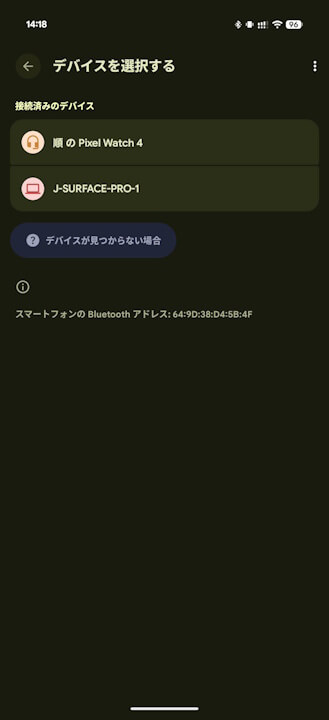
While “Bluetooth diagnostics” is primarily designed to check for issues with currently connected Bluetooth devices, it also provides specific troubleshooting steps for “Google Pixel Watch” and “Pixel Buds” series regardless of their current connection status. Additionally, it includes connection diagnostics for wireless “Android Auto.”
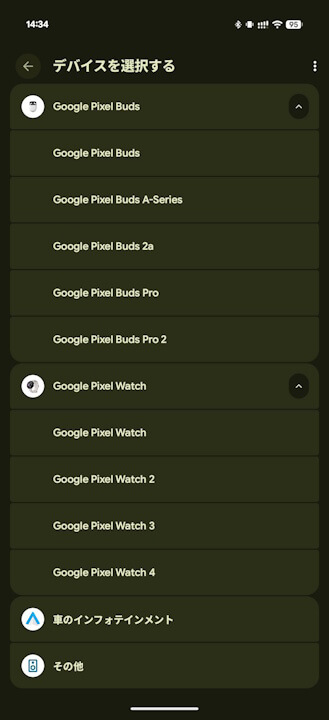
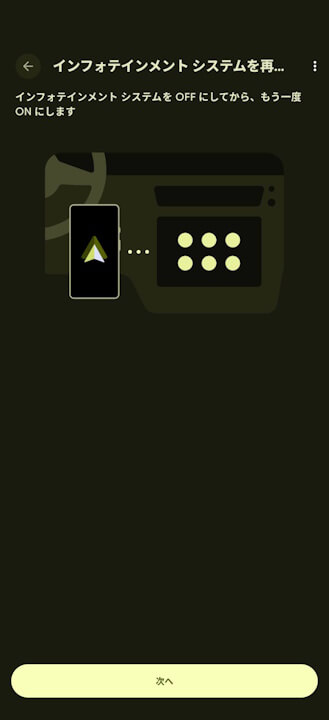
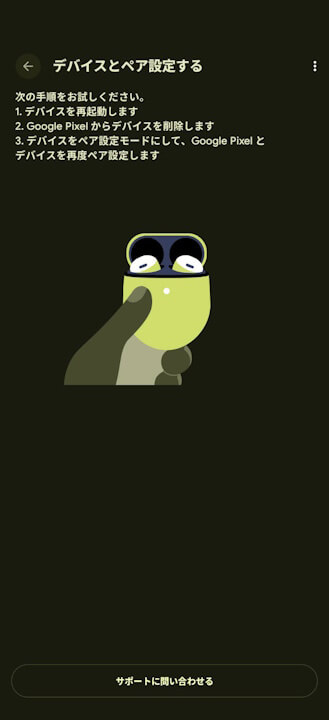
Run Bluetooth diagnostics
Important: Bluetooth diagnostics is available on Google Pixel 6 and later (including Google Pixel Fold).
- Open your phone’s Settings app.
- Tap [Connected devices]
[Bluetooth diagnostics].
Information shared with Google
When you share [Device and Bluetooth diagnostics], the following information is sent from your device:
Fix Bluetooth problems – Google Pixel Help
- Basic device info:
- Account info
- IMEI number
- Phone model (e.g., Google Pixel 8, Google Pixel 8 Pro)
- Software version
- User session ID number
- Specific settings info, such as whether Bluetooth, Airplane mode, and mobile network are turned on
- If you select a specific accessory to troubleshoot, the following info:
- Accessory type, brand, model, and volume settings
- For car infotainment, whether Android Auto is supported
- Connection test results for media audio, hands-free calling, and hearing aid profiles
- Hardware component status
- If you select the optional bug report, the following info:
- Bluetooth HCI snoop logs, which include info on accessory interactions like Bluetooth name, MAC address, and LE Audio reports
- Unencrypted accessory data, such as SIM carrier name, phone number, and metadata for “Now Playing” songs
 [Bluetooth diagnostics].
“Pixel Troubleshooting” App Link

Source: Google